How to set up a VPN on Android
Set up a VPN on any Android phone or tablet, then use Always-on VPN so your traffic never leaves the tunnel. Menu names can vary slightly by manufacturer.
Before you start
- An account with a VPN provider you trust
- A screen lock (PIN, pattern or password); Android requires one for some VPN types
- For the manual method: IKEv2 server and sign-in details from your provider
- Current system updates from Settings → System
Not sure which provider to use yet? Start with how to choose a trustworthy VPN.
- Settings
- Network & internet
- VPN
Samsung Galaxy: the path is Settings → Connections → More connection settings → VPN.
Set up a VPN on Android with your provider's app
The provider's app is the easiest option and usually includes a kill switch, DNS leak protection and modern protocols such as WireGuard.
Get the official app
Open Google Play, search for your provider and check that the developer name matches before adding the app.
Sign in
Open the app and sign in.
Approve the connection request
The first time you connect, Android shows a Connection request. Tap OK to let the app create a VPN.
Connect
Tap Connect. A key icon in the status bar shows the VPN is active.
Turn on Always-on VPN
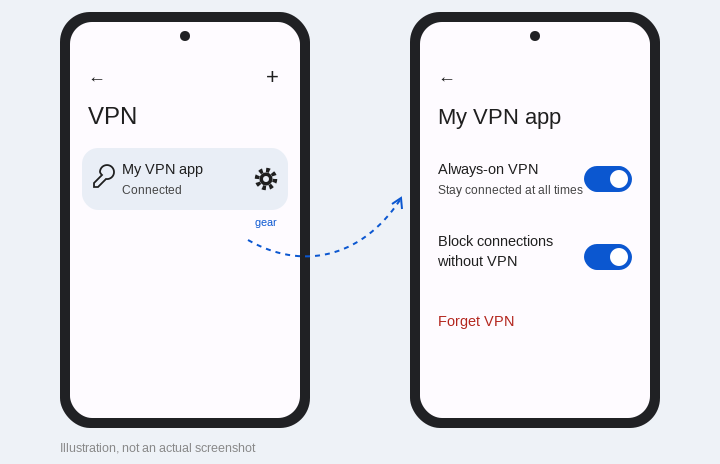
Open Settings → Network & internet → VPN, tap the gear next to your VPN app and enable Always-on VPN and Block connections without VPN. This works as a system-level kill switch.
Set up a VPN manually in Android settings
Android 12 and later include a built-in client for IKEv2/IPSec only; older PPTP and L2TP options were removed.
Open VPN settings
Go to Settings → Network & internet → VPN and tap + or Add VPN.
Enter the details
- Name: any name
- Type: IKEv2/IPSec MSCHAPv2, PSK or RSA, as your provider specifies
- Server address, IPSec identifier and certificate or key: from your provider
- Username and Password
Save and connect
Tap Save, then tap the new VPN and Connect.
How to check the VPN is working on Android
Look for the key icon
A key symbol in the status bar means a VPN is active. Pull down Quick Settings to see which app is connected.
Check the IP address
Compare the IP address in your provider's app before and after connecting.
Check Private DNS
Go to Settings → Network & internet → Private DNS. If set to a custom provider, DNS may bypass your VPN; choose Automatic or Off unless your VPN provider says otherwise.
For a complete set of leak tests, see how to check if your VPN is working.
Recommended Android VPN settings
| Setting | Where to find it | Why it matters |
|---|---|---|
| Always-on VPN | Settings → Network & internet → VPN → gear icon | Keeps the VPN running at all times. |
| Block connections without VPN | Same screen as Always-on VPN | Acts as a kill switch for all apps. |
| Battery: Unrestricted | Settings → Apps → your VPN app → Battery | Stops Android from closing the VPN in the background. |
| Private DNS | Settings → Network & internet → Private DNS | Avoids DNS requests going around the VPN. |
Fixing common Android VPN problems
| Problem | What to try |
|---|---|
| The VPN turns off on its own | Set the VPN app's battery usage to Unrestricted and enable Always-on VPN. |
| No internet with “Block connections without VPN” | That is the kill switch working: the VPN is not connected. Open the app and reconnect, or try another server. |
| The VPN option is greyed out | A work profile or device management policy may restrict VPNs. Check with the device administrator. |
| Some apps do not load | Use split tunneling in your provider's app to exclude that app, or try another server. |
Android VPN questions
Does Android have a built-in VPN?
Android includes a built-in client for IKEv2/IPSec connections, but no VPN service. Most people use their provider's app from Google Play.
What does the key icon mean?
It means a VPN connection is active on your device.
Should I use Always-on VPN?
Yes, together with Block connections without VPN. It keeps your traffic protected even after a restart or network change.
Sources and official documentation
If your screen differs from our description, the official documentation takes precedence.
- Connect to a virtual private network (VPN) on Android Android Help
- VPN, including always-on VPN Android Developers
Ready to protect your connection?
Follow our step-by-step guide to choose a trustworthy provider, set up your device and confirm that your VPN is working.
GET VPN