How to set up a VPN on iPhone and iPad
Protect your iPhone or iPad on any Wi-Fi or cellular network. The steps are the same on iOS and iPadOS.
Before you start
- An account with a VPN provider you trust
- Your Apple Account password, Face ID or Touch ID
- For the manual method: server, remote ID and sign-in details from your provider
- iOS or iPadOS kept up to date (Settings → General)
Not sure which provider to use yet? Start with how to choose a trustworthy VPN.
- Settings
- General
- VPN & Device Management
- VPN
Tip: once a VPN is added, a VPN switch also appears near the top of the main Settings screen for quick on and off.
Set up a VPN on iPhone with your provider's app
The provider's app is the easiest option and usually includes a kill switch, DNS leak protection and modern protocols such as WireGuard.
Get the official app
Open the App Store, search for your provider and tap Get. Check the developer name.
Sign in
Open the app and sign in with your VPN account.
Allow VPN configurations
Tap Allow when iOS asks to add VPN configurations, then confirm with Face ID, Touch ID or your passcode.
Connect
Tap Connect. A VPN badge appears in the status bar or in Control Center.
Turn on Connect On Demand
In the app's settings, enable auto-connect (often called Connect On Demand) so the VPN starts on untrusted networks automatically.
Set up a VPN manually in iPhone Settings
Use this method for IKEv2, IPSec or L2TP details from your provider or employer.
Open VPN settings
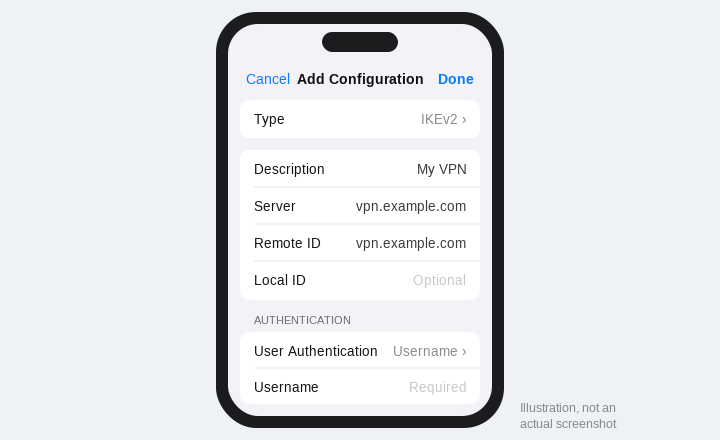
Go to Settings → General → VPN & Device Management → VPN and tap Add VPN Configuration.
Enter the details
- Type: IKEv2 (or as specified)
- Description: any name
- Server and Remote ID: from your provider
- User Authentication: Username, then your user name and password
Save and connect
Tap Done, then turn on the Status switch. It changes to Connected.
How to check the VPN is working on iPhone
Check the status
Settings → VPN shows Connected, and the VPN badge appears in the status bar or Control Center.
Check the IP address
Compare the IP address shown in your provider's app before and after connecting; it should change to the VPN server's address.
Run the app's leak test
Use the DNS leak test built into most reputable VPN apps. Only your provider's DNS servers should appear.
For a complete set of leak tests, see how to check if your VPN is working.
Recommended iPhone and iPad VPN settings
| Setting | Where to find it | Why it matters |
|---|---|---|
| Connect On Demand | Provider app settings, or the ⓘ button next to the VPN in Settings | Connects automatically on untrusted Wi-Fi. |
| Kill switch | Provider app settings (name varies) | Blocks traffic outside the tunnel. |
| Private Wi-Fi Address | Settings → Wi-Fi → ⓘ next to the network | Uses a different hardware address on each network. |
| Limit IP Address Tracking | Settings → Wi-Fi → ⓘ next to the network | Reduces tracking in Mail and Safari. |
Fixing common iPhone VPN problems
| Problem | What to try |
|---|---|
| The VPN keeps disconnecting | Turn on Connect On Demand, use IKEv2 or WireGuard, and turn off Low Power Mode while testing. |
| “Unable to connect to server” | Check the server address and remote ID, switch servers, or switch between Wi-Fi and cellular to rule out a blocked network. |
| Two VPN configurations conflict | Go to Settings → General → VPN & Device Management → VPN and delete configurations you no longer use. |
| Some apps do not work while connected | Try another server. If an app blocks VPN connections, pause the VPN only while using it. |
iPhone and iPad VPN questions
Does iPhone have a built-in VPN?
iOS includes a VPN client for IKEv2, IPSec and L2TP connections, but no VPN service. Most people use their provider's app.
Is iCloud Private Relay the same as a VPN?
No. iCloud Private Relay hides your IP address mainly for Safari browsing. A VPN covers traffic from all apps.
Does a VPN work on cellular data?
Yes. It encrypts traffic on cellular data as well as Wi-Fi, and IKEv2 and WireGuard reconnect quickly when you switch networks.
Sources and official documentation
If your screen differs from our description, the official documentation takes precedence.
- VPN overview for Apple device deployment Apple Platform Deployment
- Internet Key Exchange Protocol Version 2 (IKEv2), RFC 7296 RFC Editor
Ready to protect your connection?
Follow our step-by-step guide to choose a trustworthy provider, set up your device and confirm that your VPN is working.
GET VPN